-
Open the Dropbox link
On your iPad, tap the Dropbox link provided. It will open in your browser—no need to sign in to Dropbox!
-
Open in Notability
Open the cover file. With the PDF open, tap the Share icon (top-right), then select “Share to Notability.”
-
Choose your favorite cover
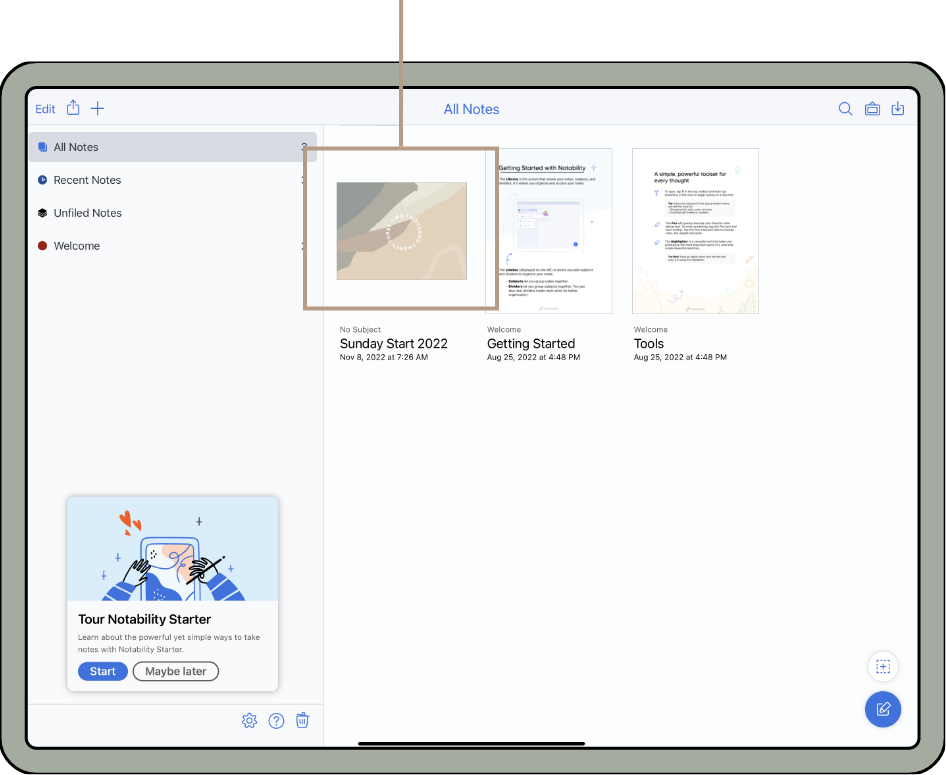
In Notability, browse through the PDF and find the cover you’d like to use.
-
Copy the cover page
Tap the double-page icon to open the page sidebar. Find the cover you want, tap and hold on it, then tap “Copy.”
-
Paste it into your planner
Open your planner file in Notability. Open the page sidebar again and tap “Select” at the bottom. Tap the first page of the planner (this sets where the new cover will be inserted), then tap “Paste” at the bottom.
-
Remove the old cover
In the page sidebar, select the original cover page. Tap the three dots in the bottom-right corner > choose “Delete.”